


Grid Visualization

Grid Visualization Applications

You can update the current display by selecting the Display button after you have changed the Quality measures display toggle.

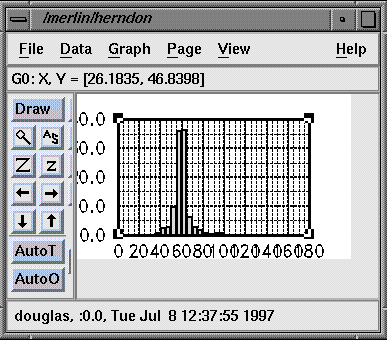
To display a bar graph of grid quality measures, select the Display Quality Statistics button.
Select the display type among
Surface Weather Map,
Surface Solid Angle,
Volume Weather Map,
InitialSpacing, and
B-L Thickness.
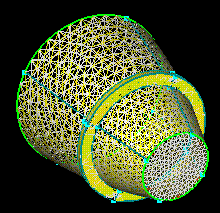
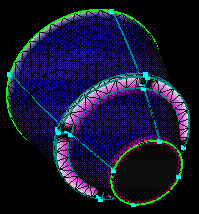
The Surface Weather Map displays triangles based on
their respective angular measurements. The
Surface Solid Angle displays
a shaded contour plot of triangle-triangle solid angles. This is useful for
determining where geometry problems exist as well as where point spacings
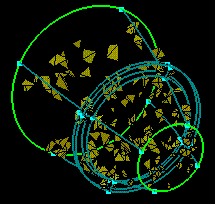
are too coarse. The Volume Weather Map displays volume
elements based on their respective angular measurements. For the
Surface Weather Map, the Outside Range
toggle can be used to display only the "good" faces or only the "bad" faces. With the
Outside Range toggle on, only
"bad" faces are highlighted, while only "good" faces are
presented when the toggle is off. The Quality Measures Display
menu may be used to select how the elements are displayed for both the
Surface Weather Map and
Volume Weather Map.
The default color map ranges from black,
blue,
cyan,
green,
yellow,
red,
magenta, to white with
black representing the minumum value and white representing the maximum value.
-
Surface Weather Map
-
Surface Solid Angle
-
Volume Weather Map
-
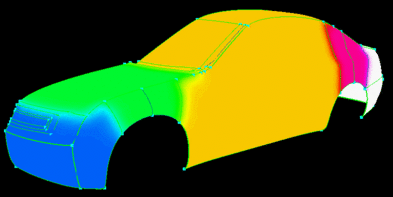
Initial Spacing Distribution
-
Boundary-Layer Thickness Distribution
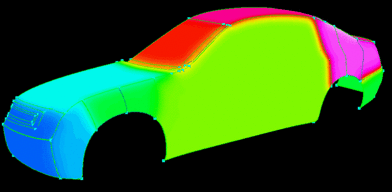
Note that the Local Spacing toggle must be selected in order to display the distribution.
Note that the Local Spacing toggle must be selected in order to display the distribution.
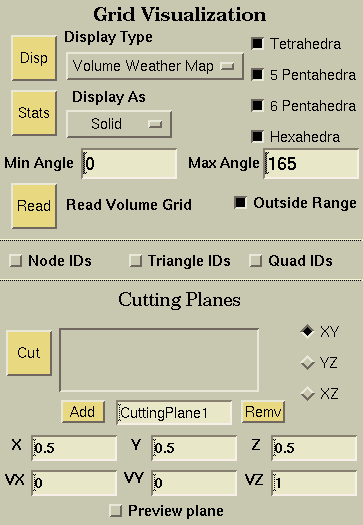
Select the display method for the Surface Weather Map and Volume Weather Map among Solid, ColorRamp, and Histogram. Using the Solid option, all elements will be colored using a single color which can be set using the Misc Entity Color menu. The ColorRamp option colors the elements based on the specified range defined using the Minimum & Maximum Angle fields and the Outside Range toggle. The Histogram option colors the elements using the default color range mapped from a minimum angle of 0 degrees to a maximum angle of 180 degrees.
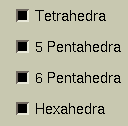
Used to select the type of element to be used in the Volume Weather Map.

Used to specify the angle criteria range for display with the Surface Weather Map and the Volume Weather Map quality measures. With the Outside Range toggle turned on, elements having angles less than the Min Angle and greater than the Max Angle are displayed.

Used in conjunction with the Minimum & Maximum Angle fields to display the Surface Weather Map. With the toggle selected, faces exclusive of the Min Angle and Max Angle range are displayed. With the toggle deselected, faces inclusive of the min/max range are displayed.

To read in a volume grid with the specified case name, select the Read Volume Grid button. The volume grid file type, format, and compression is selected using the volume grid file options in the Volume Grid Advanced Options application.
Used to display the node ids. Only the ids for the visible boundary nodes will be displayed.
Used to display the triangle ids. Only the ids for visible triangles will be displayed.
Used to display the quad ids. Only the ids for visible quads will be displayed.
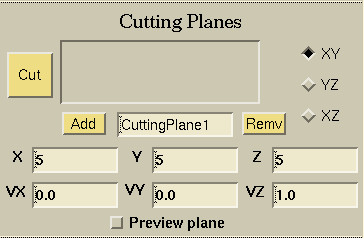
Cutting planes allow you to interrogate the grid by specifying
one or more cutting planes. Each cutting plane can be defined using
a starting point and a normal vector to the plane. The XY, YZ,
XZ selector simply sets the normal vector to the appropriate values.
To create a cutting plane, specify the name of the cutting plane,
the center point and the normal and click
 .
To change a cutting plane, select the cutting plane, change the vector or point values, then
click
.
To change a cutting plane, select the cutting plane, change the vector or point values, then
click  .
To remove a cutting plane, select the cutting plane and click
.
To remove a cutting plane, select the cutting plane and click
 .
.
 |
 |
 |
 |