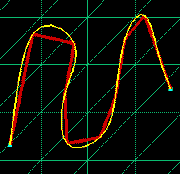
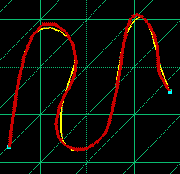
Curve Application Examples

drawline

Create line

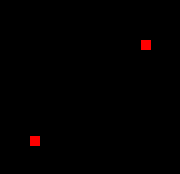
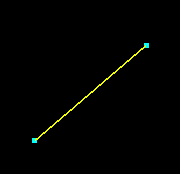
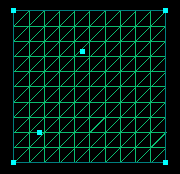
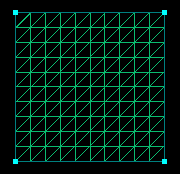
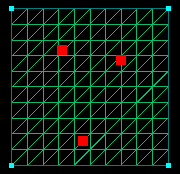
1.  Pick two points and drawline

curveexamp
curveexamp
curveexamp3

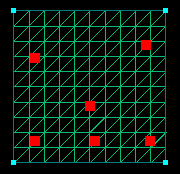
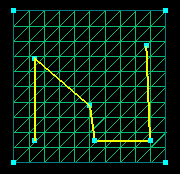
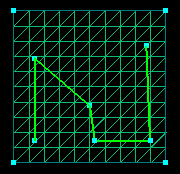
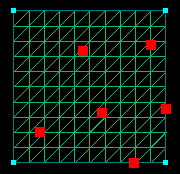
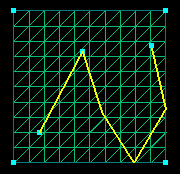
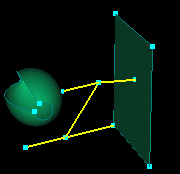
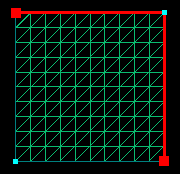
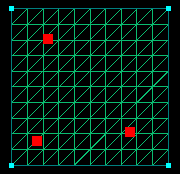
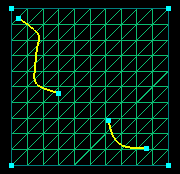
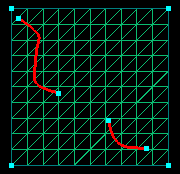
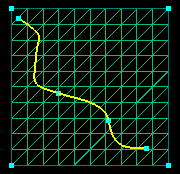
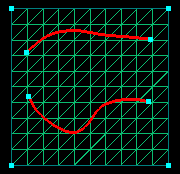
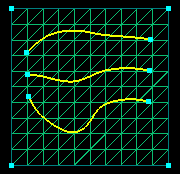
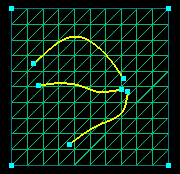
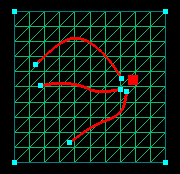
2. Pick any number of points and drawlineNOTE:  The curves generated are segments between each pair of points in the order picked.
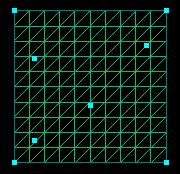
curveexamp
curveexamp
curveexamp6

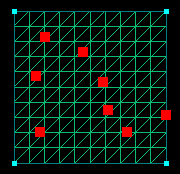
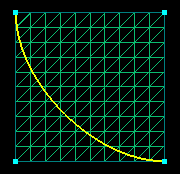
3.   Pick any number of points and a surface and drawline
NOTE:  Although impossible to see the same points shown picked above are also picked in the second image below.  The result looks identical to the pictures above but picking the surface caused the curves to be generated in the parametric space of the selected surface unlike the example above.
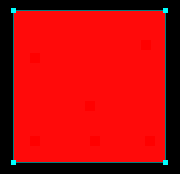
curveexamp
curveexamp
curveexamp6b

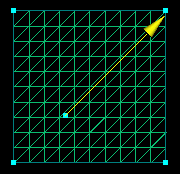
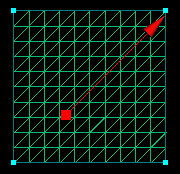
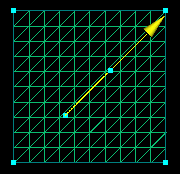
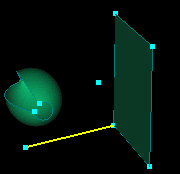
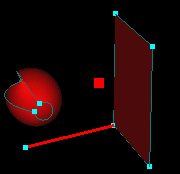
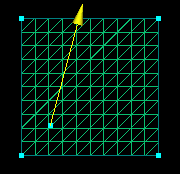
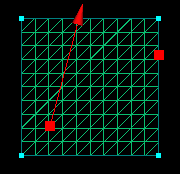
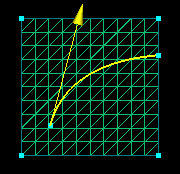
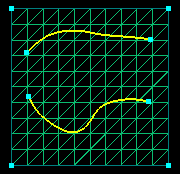
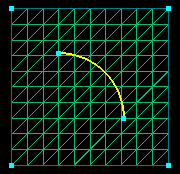
4.  Pick a single point, a vector, and enter a curvdist in the field.  Click drawline.
curveexamp
curveexamp
curveexamp10
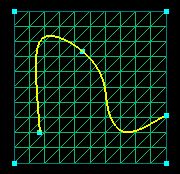
polyline

Polyline curve

Pick at least two points and polylineNOTE:  The curve generated is one complete curve from the first point picked to the last.  Also, if a surface had been selected, a parametric curve attached to the surface selected would have been generated.

cureveexamp
cureveexamp
curveexamp13
itpcc

Create interpolated cubic curve

Select at least four points and itpccNOTE:  One curve is generated from the first point selected to the last.  Also, if a surface had been selected, a parametric curve attached to the surface selected would have been generated.

cureveexamp
cureveexamp
curveexamp15
normalline

Normal line

Select a point and any number of curves and/or surfaces and normalline.

cureveexamp
cureveexamp
curveexamp48
extract

Extract bounding parametric curves

1.  Select a surface and extract.

cureveexamp
curveexamp
curveexamp17

2.  Select any number of a surface's bounding curves and extract

cureveexamp
cureveexamp
curveexamp19
cubiccurve

Create cubic curve

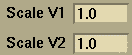
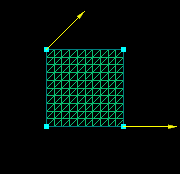
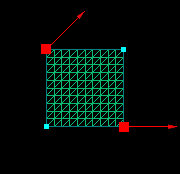
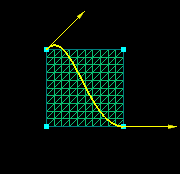
1.  Select the start point and vector.  Select the end point and vector.  Set the scalevector to the desired values and cubiccurve.

cureveexamp
cureveexamp
curveexamp22

2.  Pick the start point and a curve containing that point.  Pick the end point and a curve containing the end point.  Set the scalevector to the desired values and cubiccurve.

cureveexamp
cureveexamp
curveexamp25
quadcurve

Create quadratic curve

Pick a starting point and vector.  Click quadcurve.

cureveexamp
cureveexamp
curveexamp28
circulararc

Create circular arc

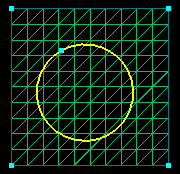
1.  Select 3 points and circulararc.

cureveexamp
cureveexamp
curveexamp30

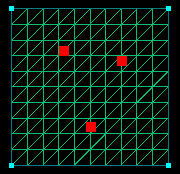
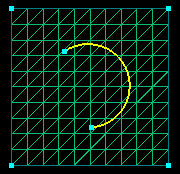
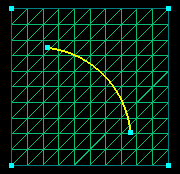
2.  Select one point.  Set the desired values in radiusnewstartangnew, and endangnew.

cureveexamp
cureveexamp
curveexamp32
circle

Create circle

Pick three points and circle.

cureveexamp
cureveexamp
curveexamp34
arcsegment

Create arc segment

Pick the vertex (lower left point) of the arc segment.  Pick the start point (lower right point). Pick the end point and arcsegment.

cureveexamp
cureveexamp
curveexamp36
blendcurves

Blend curves

Select two curves and blendcurves.

cureveexamp
cureveexamp
curveexamp39
avpicked

Average curves

Select two curves and avpicked.

cureveexamp
cureveexamp
curveexamp42
snap

Snap

Select any number of curves and a single point and snap.

cureveexamp
cureveexamp
curveexamp45
approx

Approximate picked curve

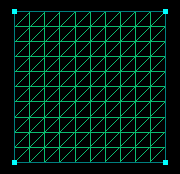
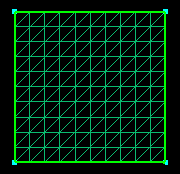
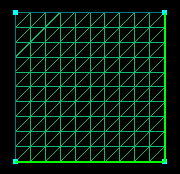
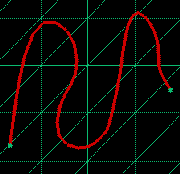
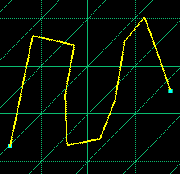
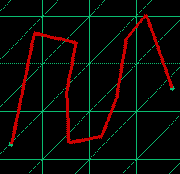
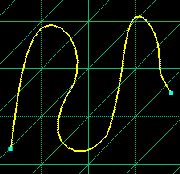
First, select any curve as shown.  Then change the display resolution to 11, shown in the third figure.  Then pick the curve again, and select approx.  Figure five shows the comparison of the original curve (set to a display resolution of 11) and the approximated curve.  Since the original curve remains picked, change the display resolution back to 41, and compare the original and approximated curves.  This is shown in figure six.  The original curve is shown in red for comparison purposes. 
approxexam1
approxexamn
approxexam2
approxexam3
approxexam4
approxexam5
contents_btn previous_btn home_btn